Built in 2023
AF is a concept for an AI assistant that you can add user-created mini apps to (kind of like “capabilities” for Alexa, but GUIs). I designed it and did the iOS programming.
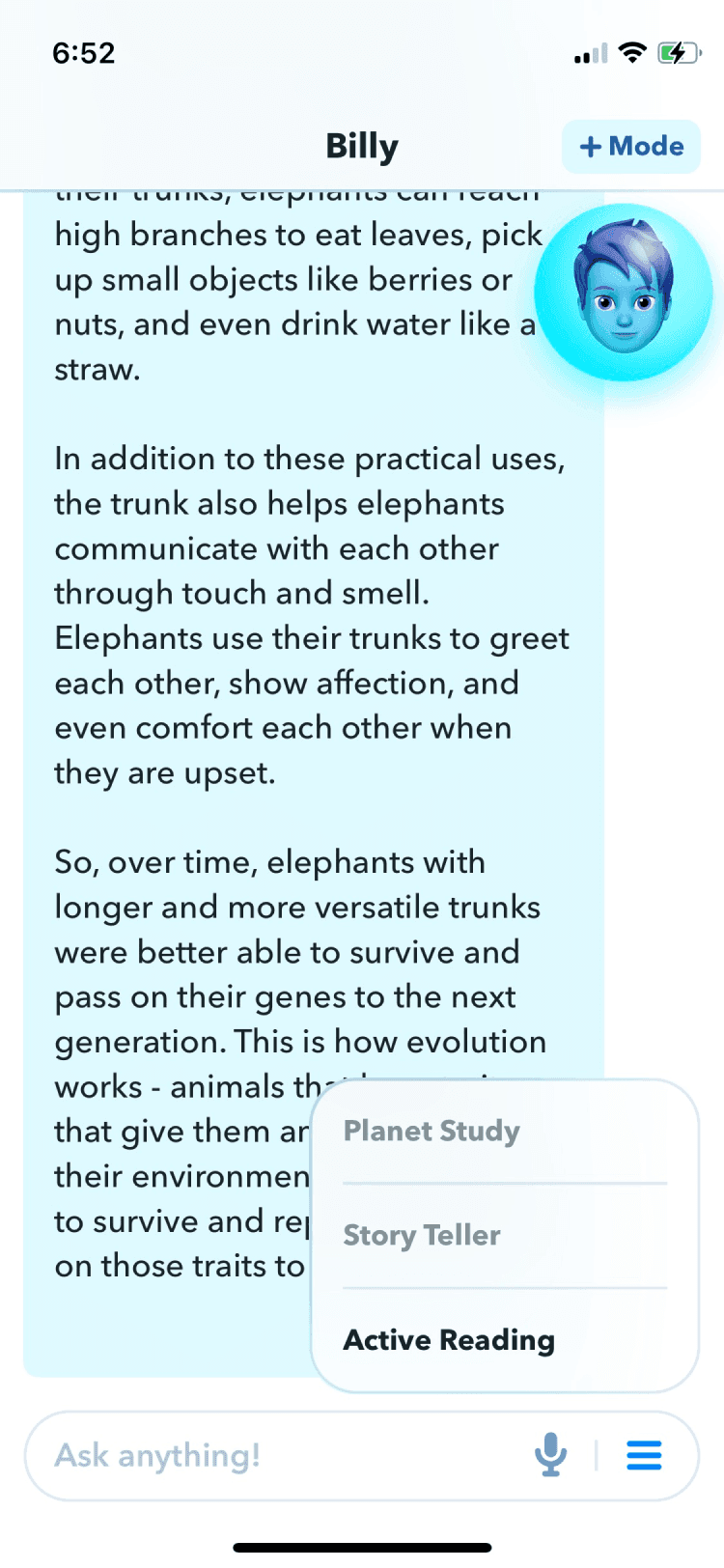
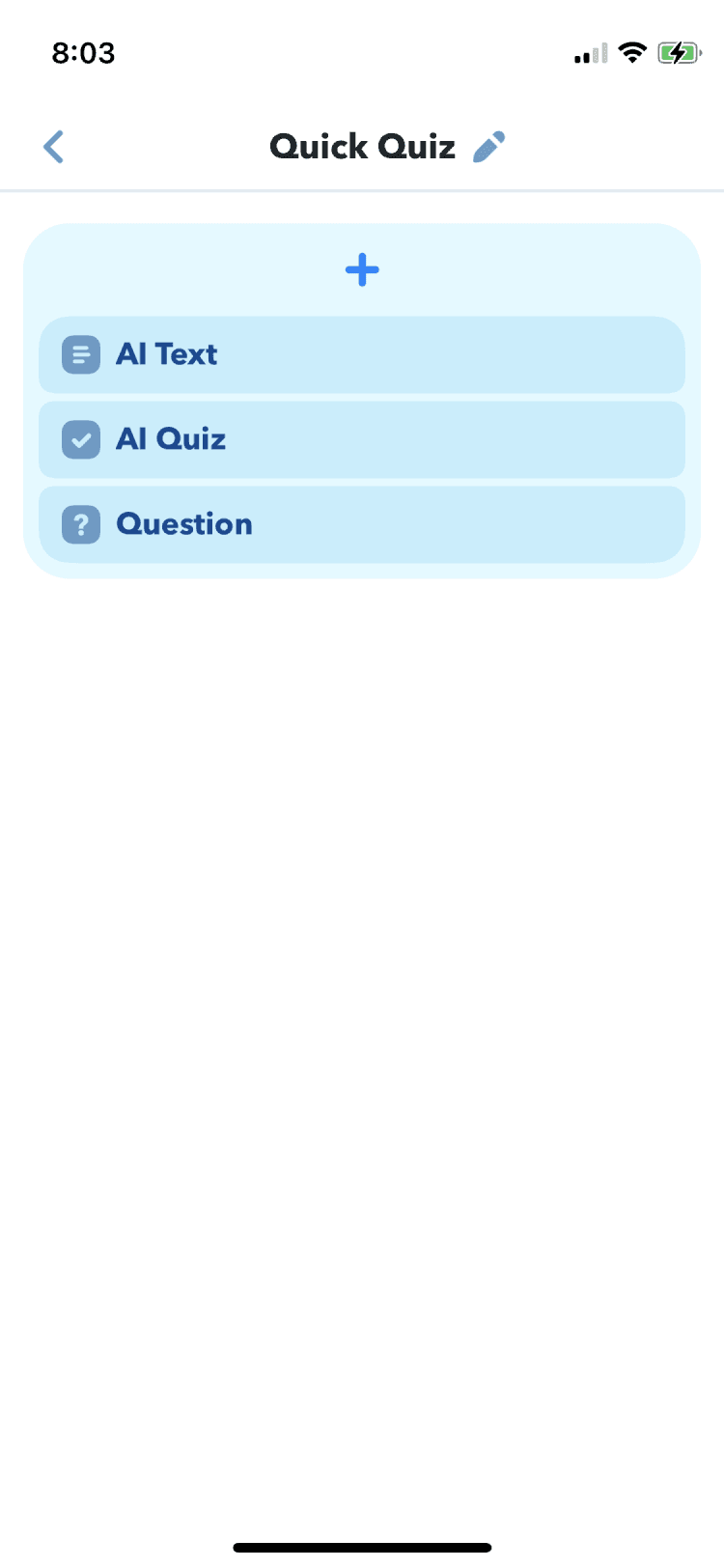
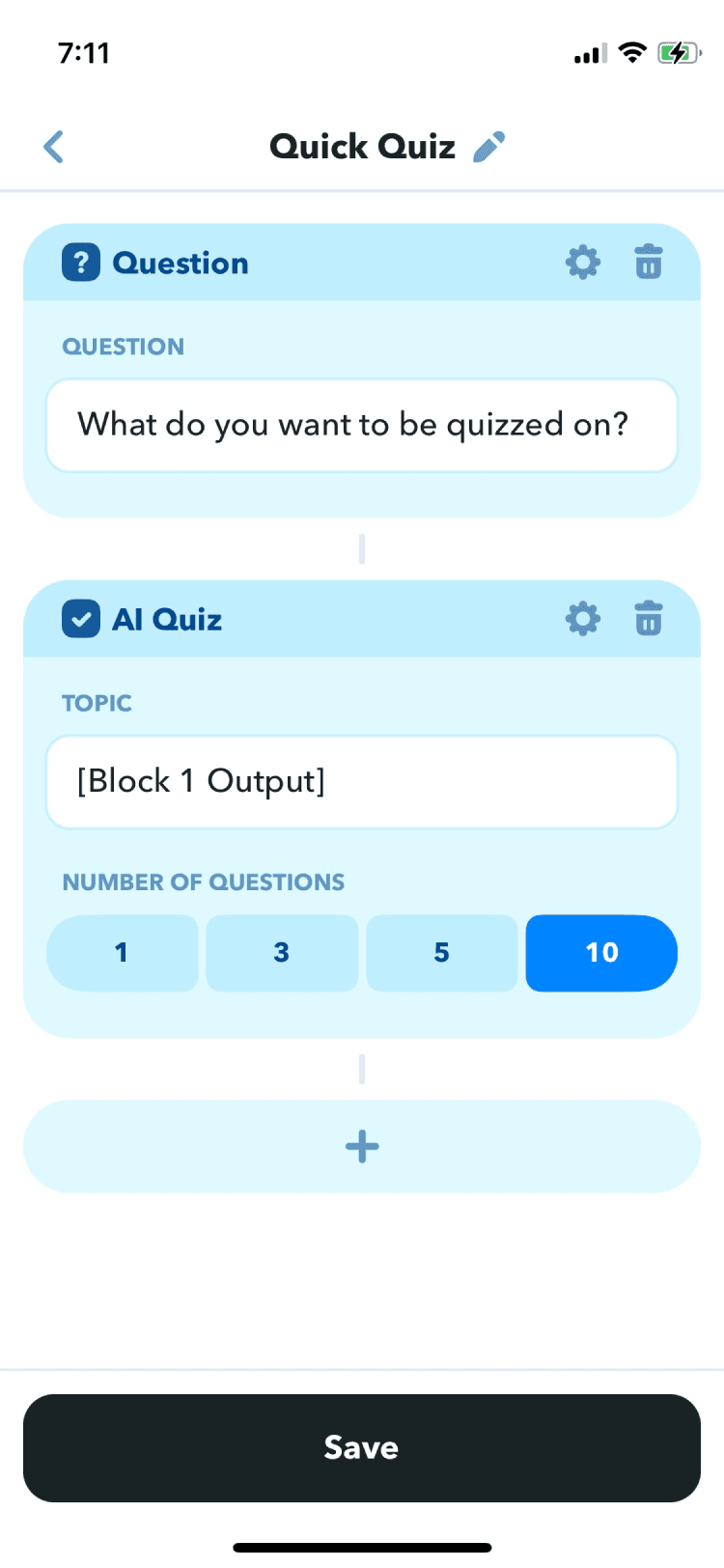
The mini apps (“modes”) are flows designed for specific use cases and built out of no-code building blocks (e.g. AI image, AI quiz, audio recorder). Anyone can create a mode in a few minutes and share it with the community.
Some mode examples:
- Meeting Notetaker: Record a meeting, transcribe it, then create a summary and action items
- Bedtime Storyteller: Enter a topic and create a short bedtime story with illustrations
- Study Buddy: Take a picture of your notes to create flashcards and a multiple choice quiz
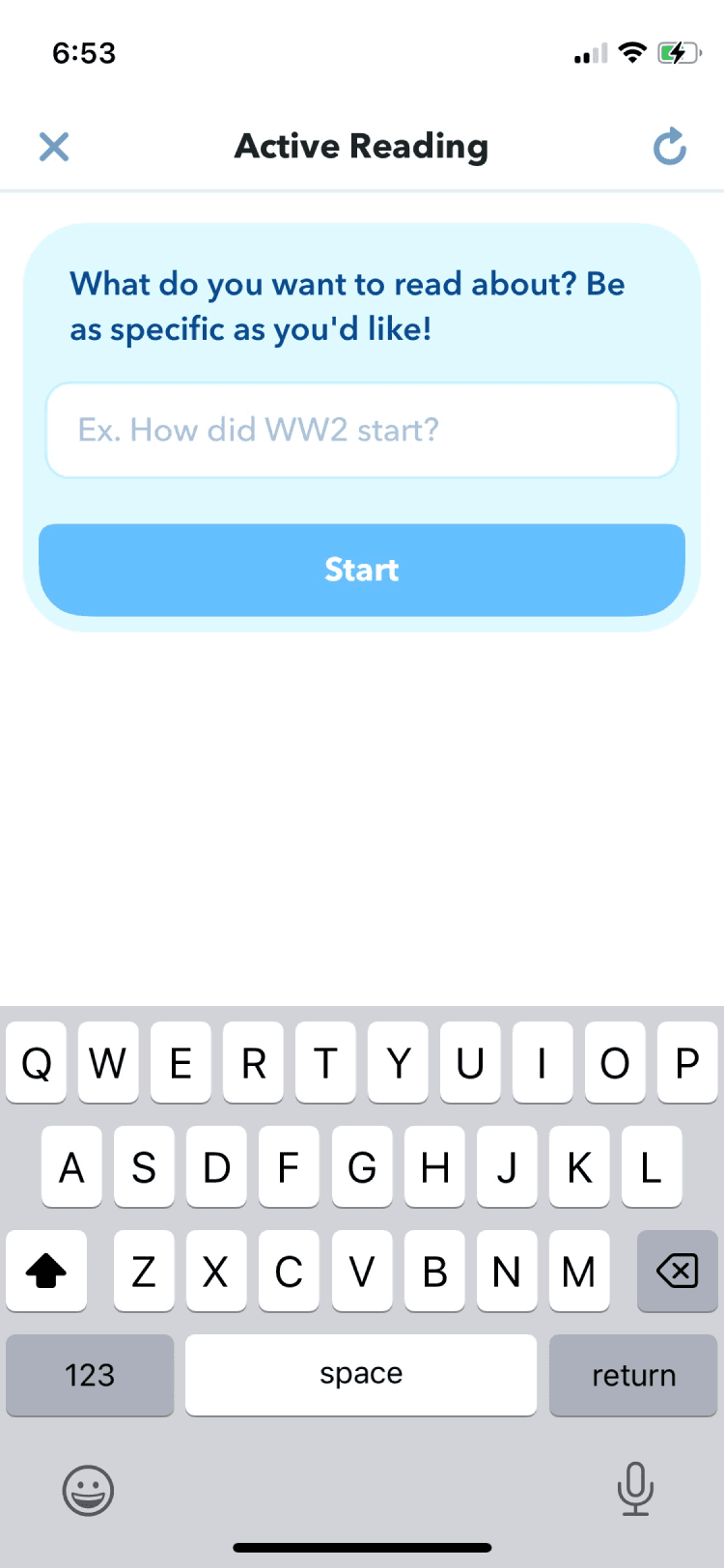
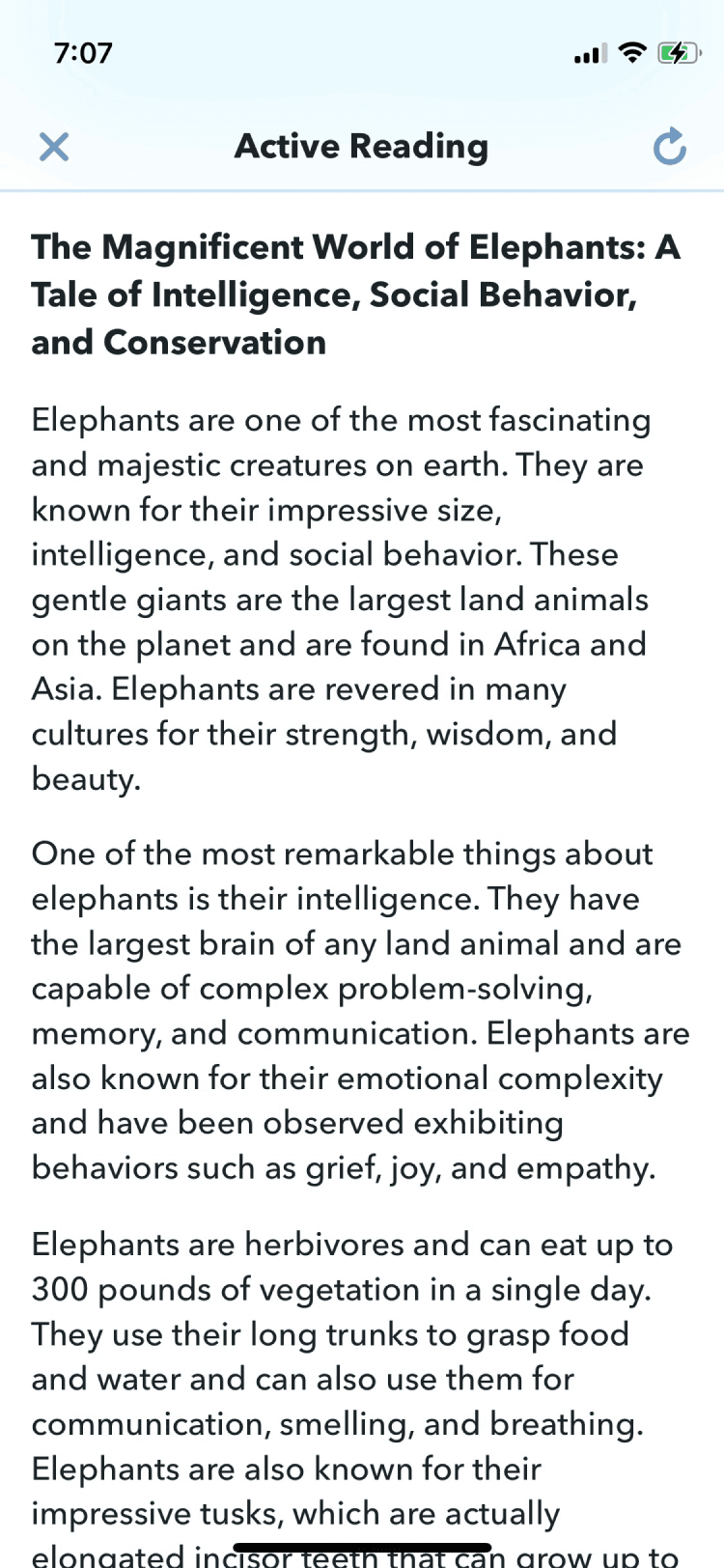
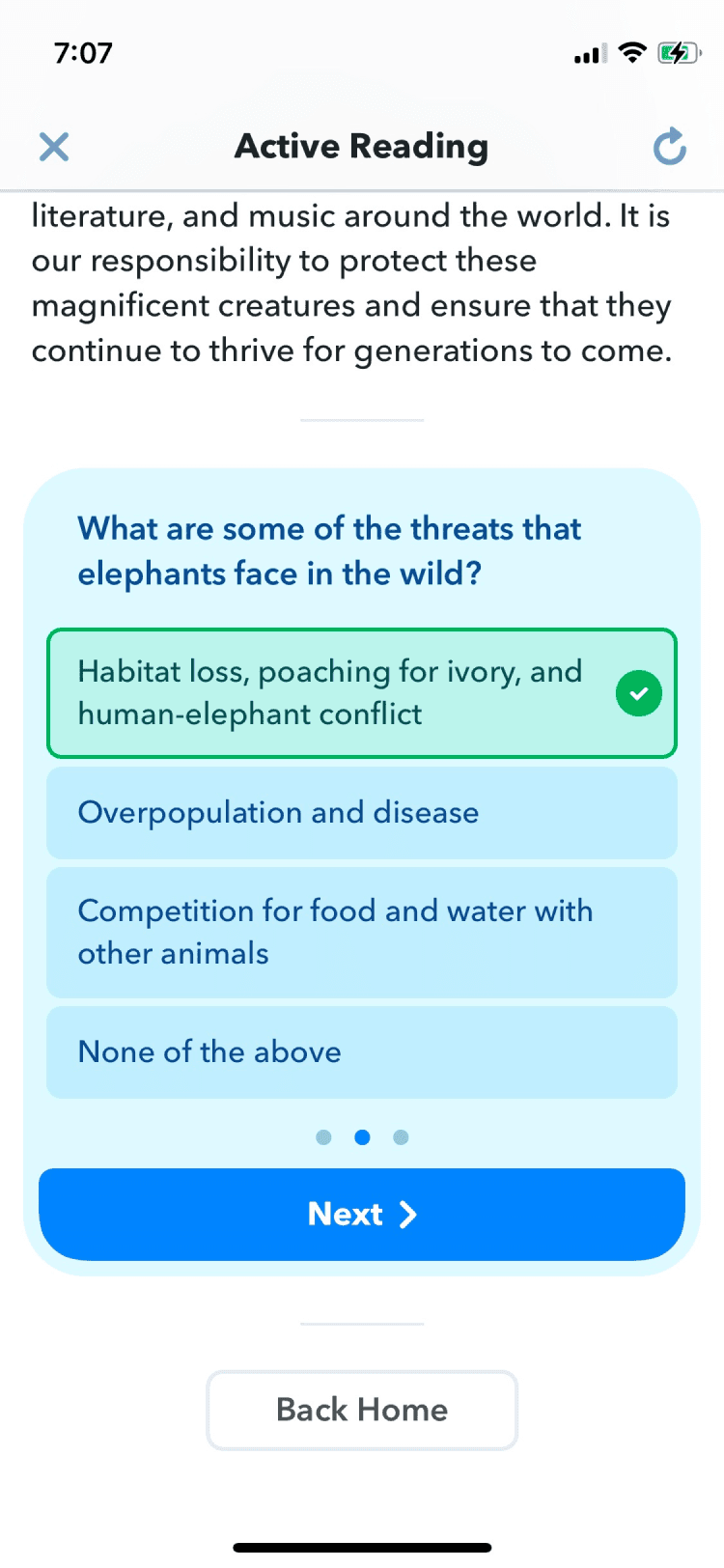
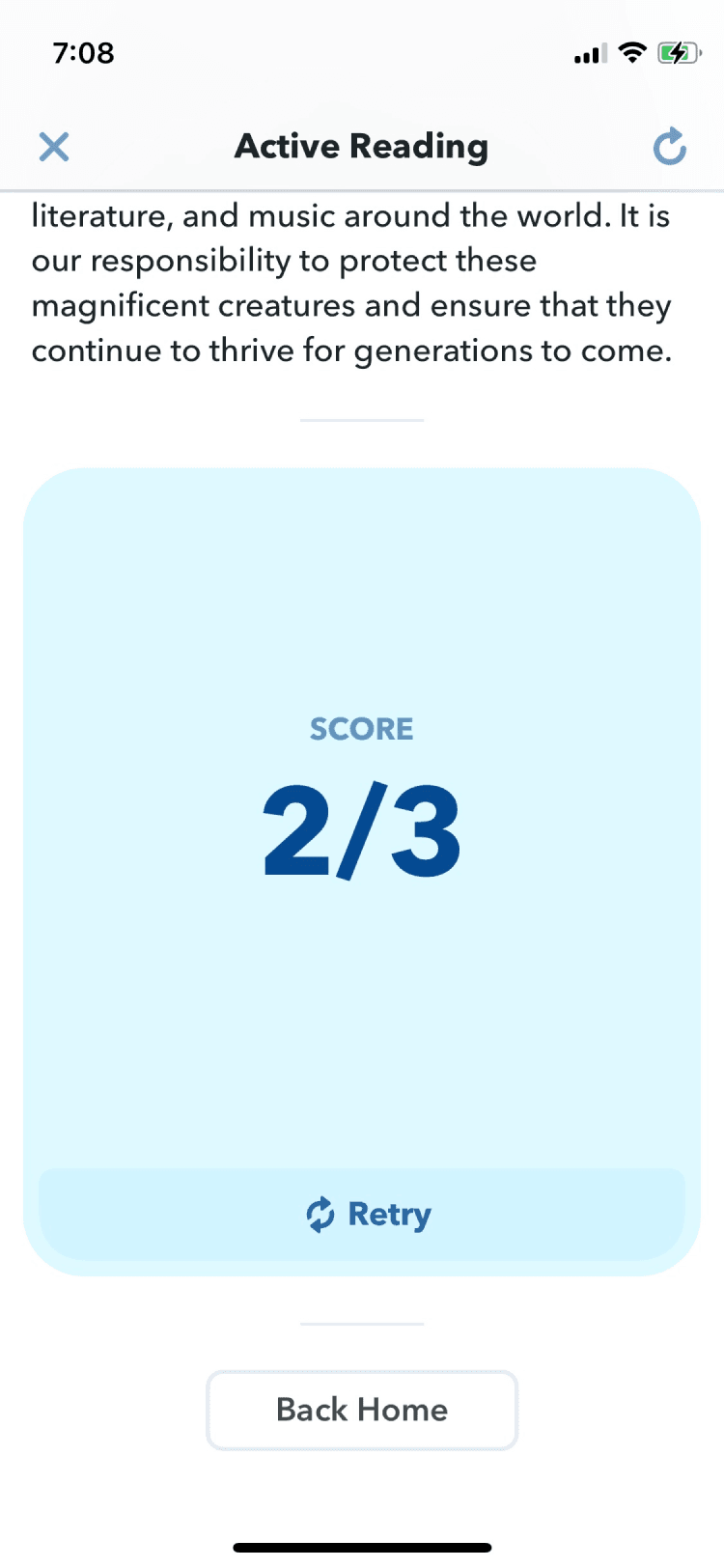
This concept includes one demo mode, which allows you to enter a topic, generate some reading on it, then take a multiple choice quiz to test your understanding. It also includes a dummy interface that illustrates how a mode would be built by a user. Due to time constraints, it doesn't include a “mode app store”, but that would also be an important part of the experience.
Main Flows
Below are screen captures of the most important flows in the concept: creating a mode and using a mode.
Personalized Assistants
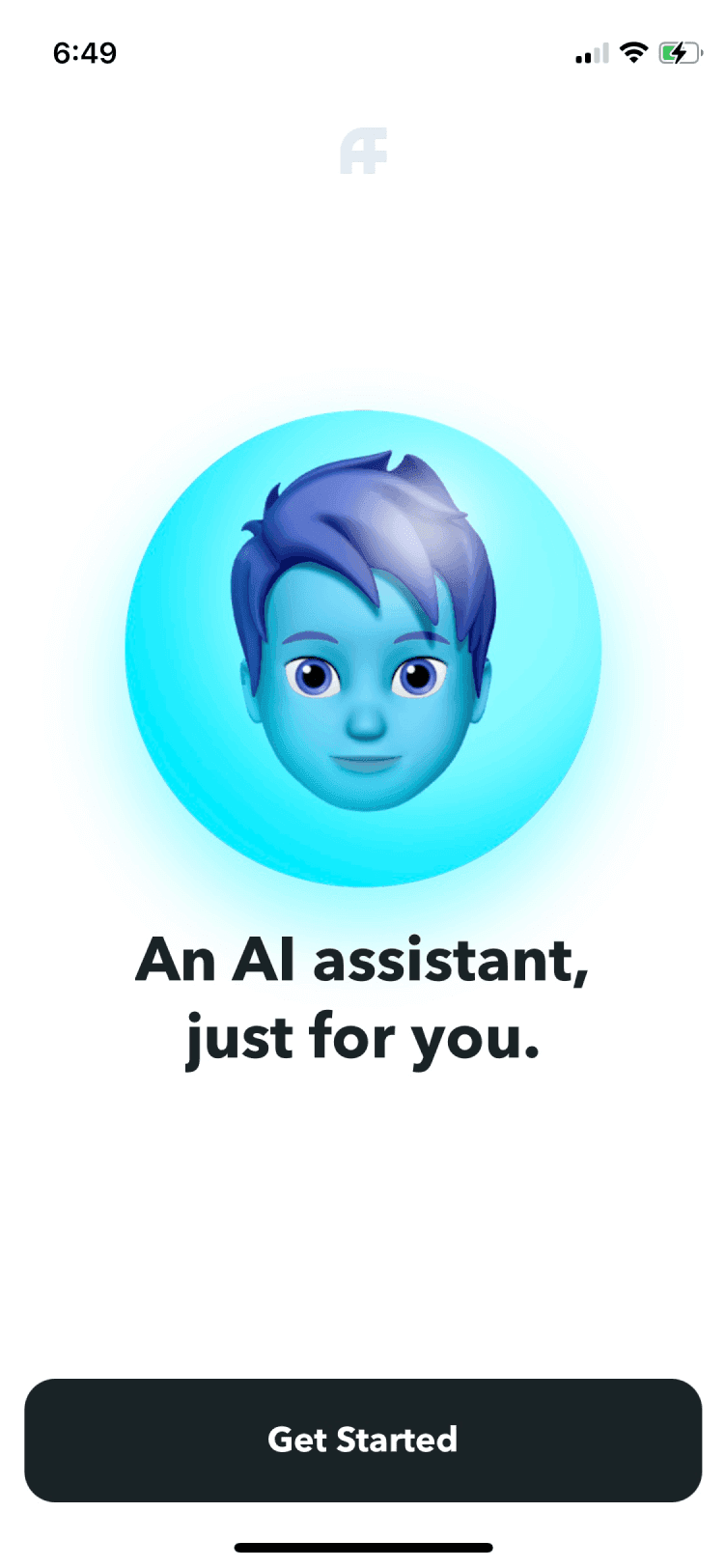
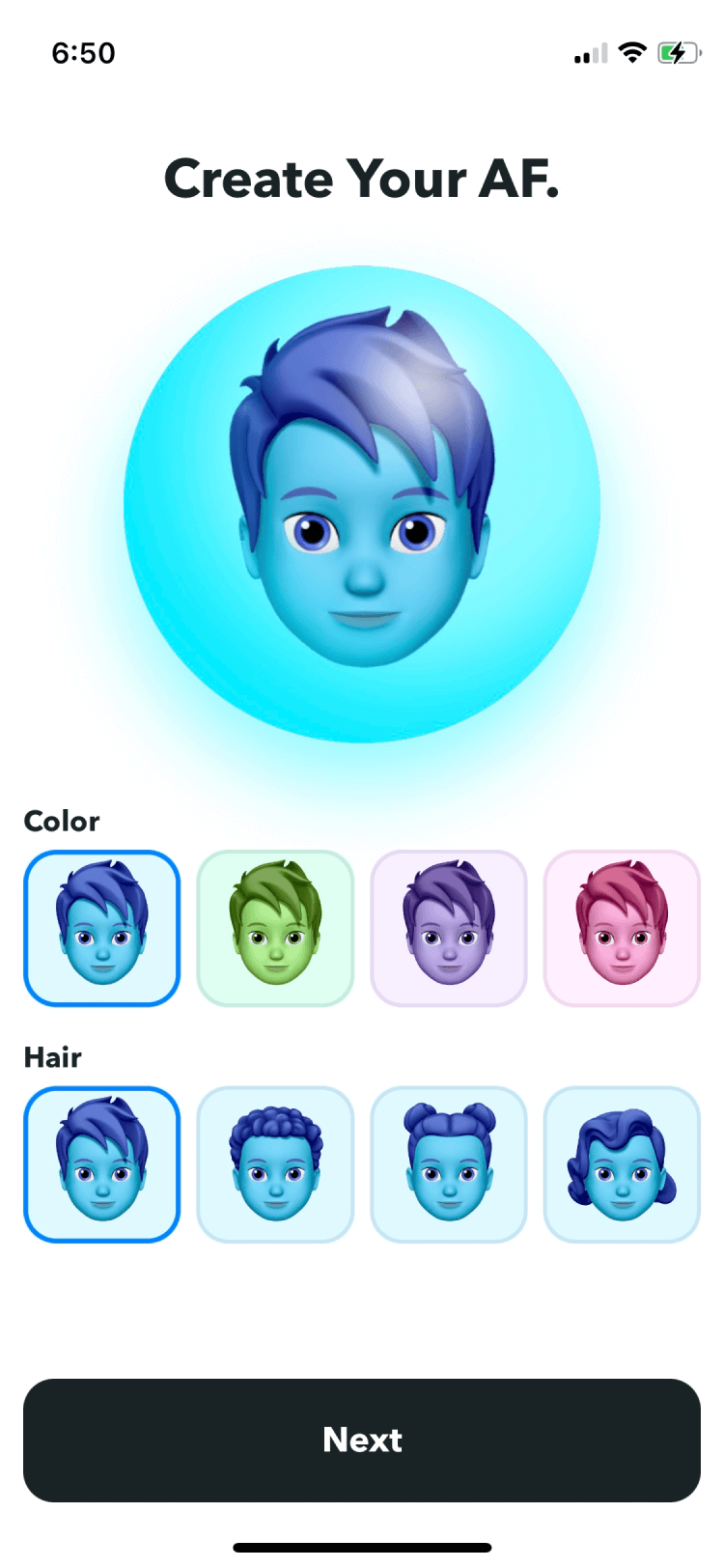
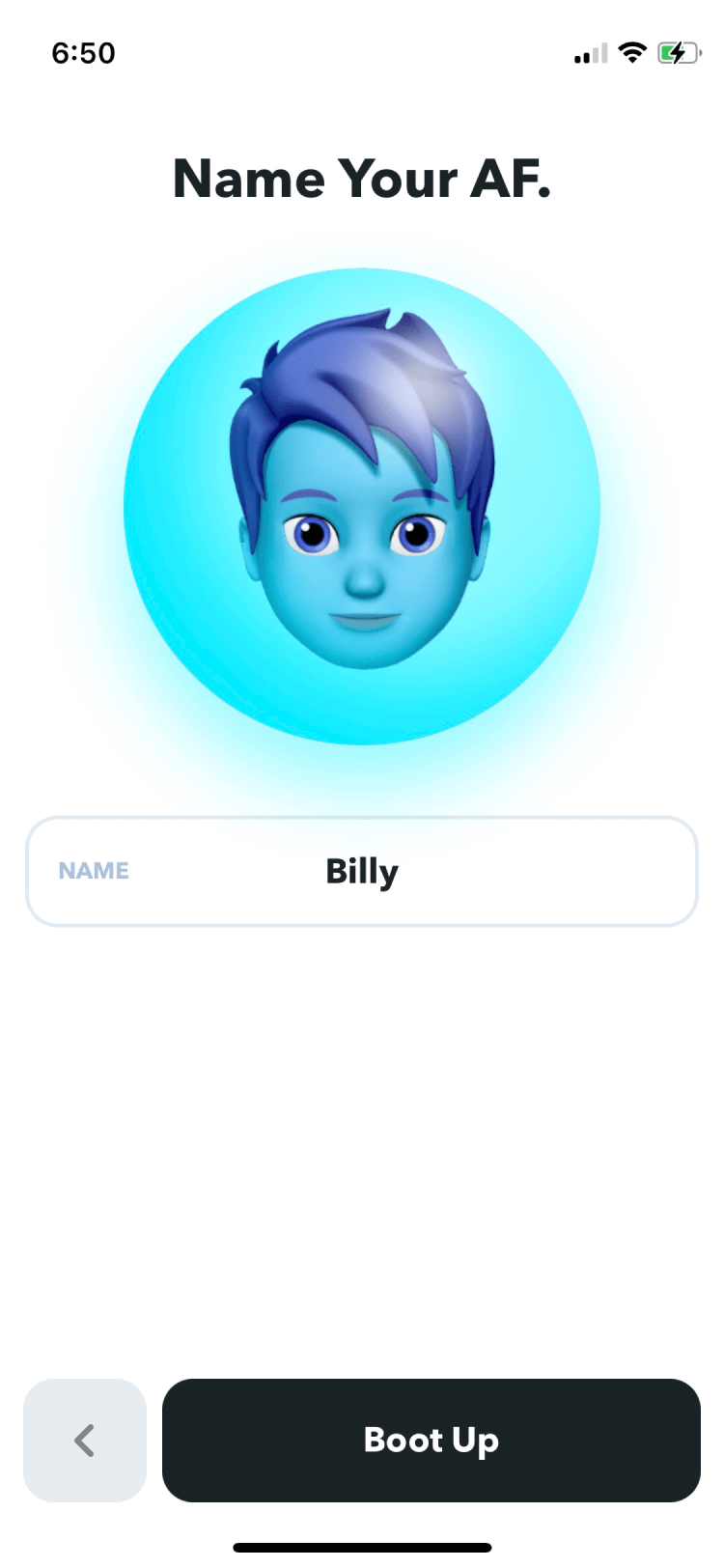
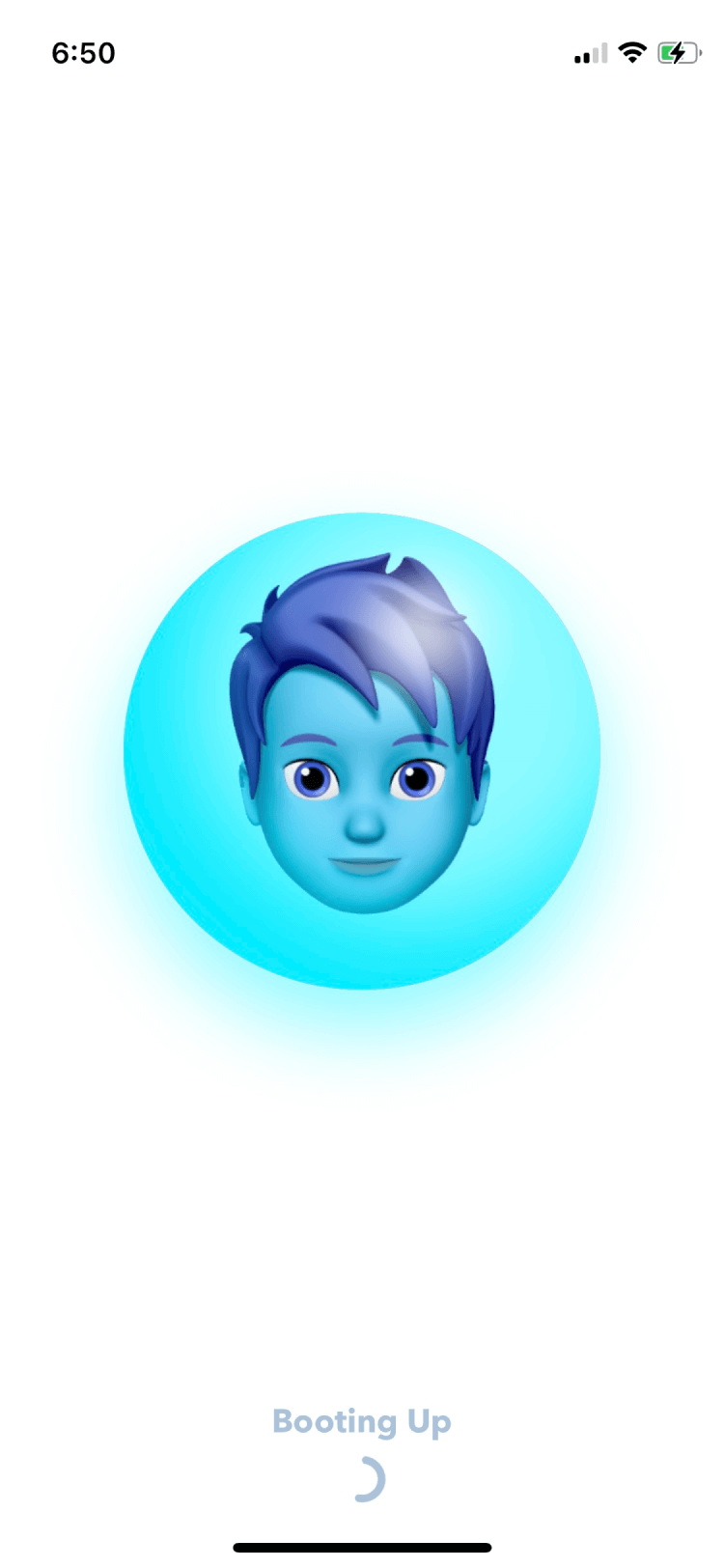
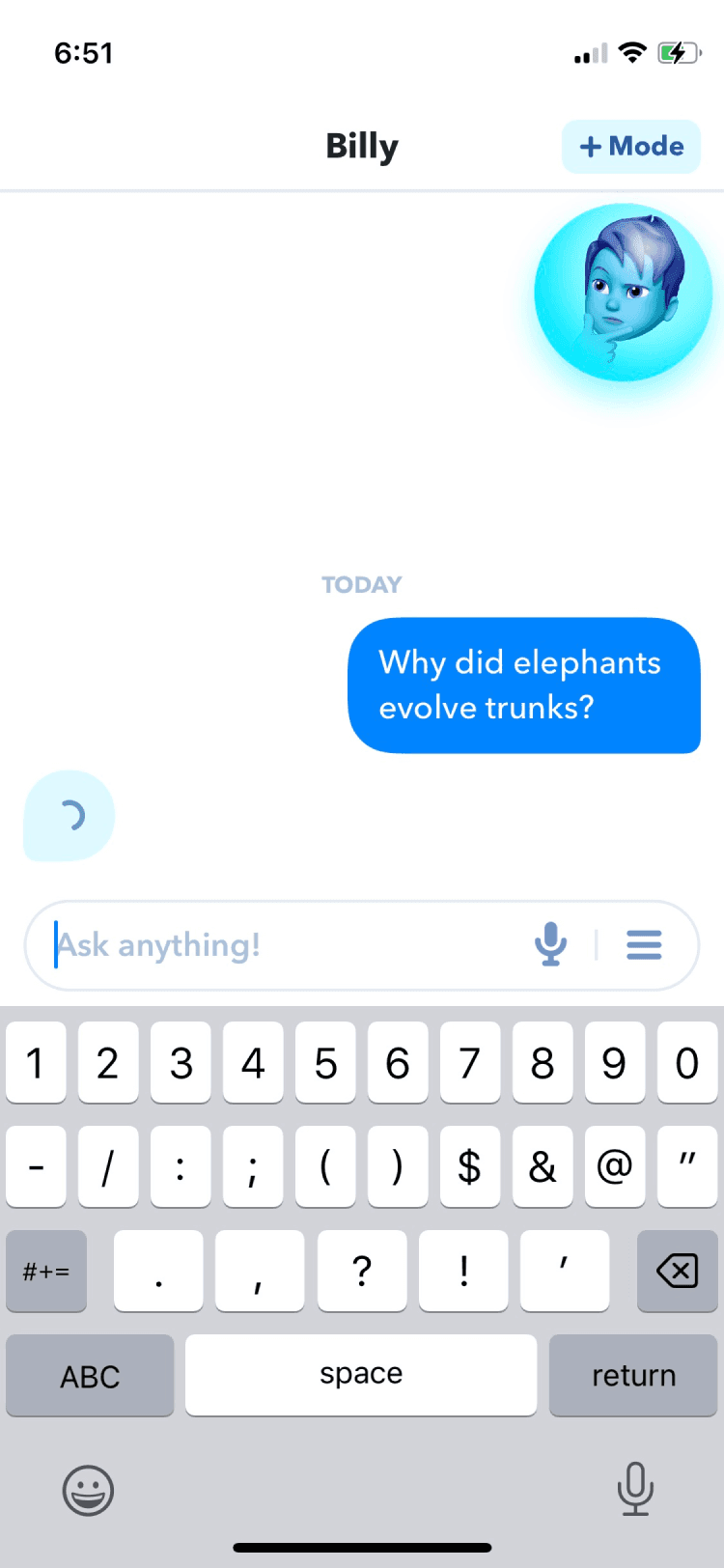
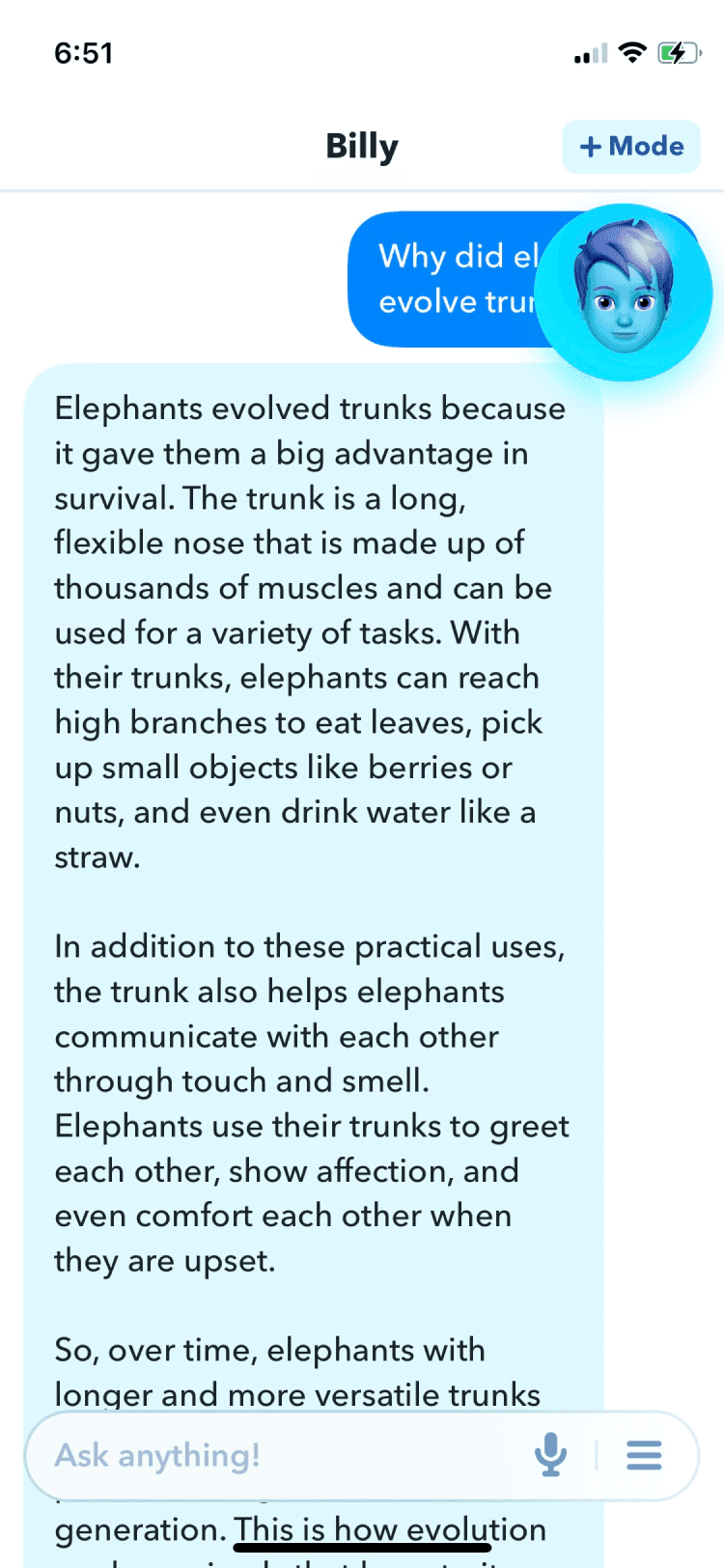
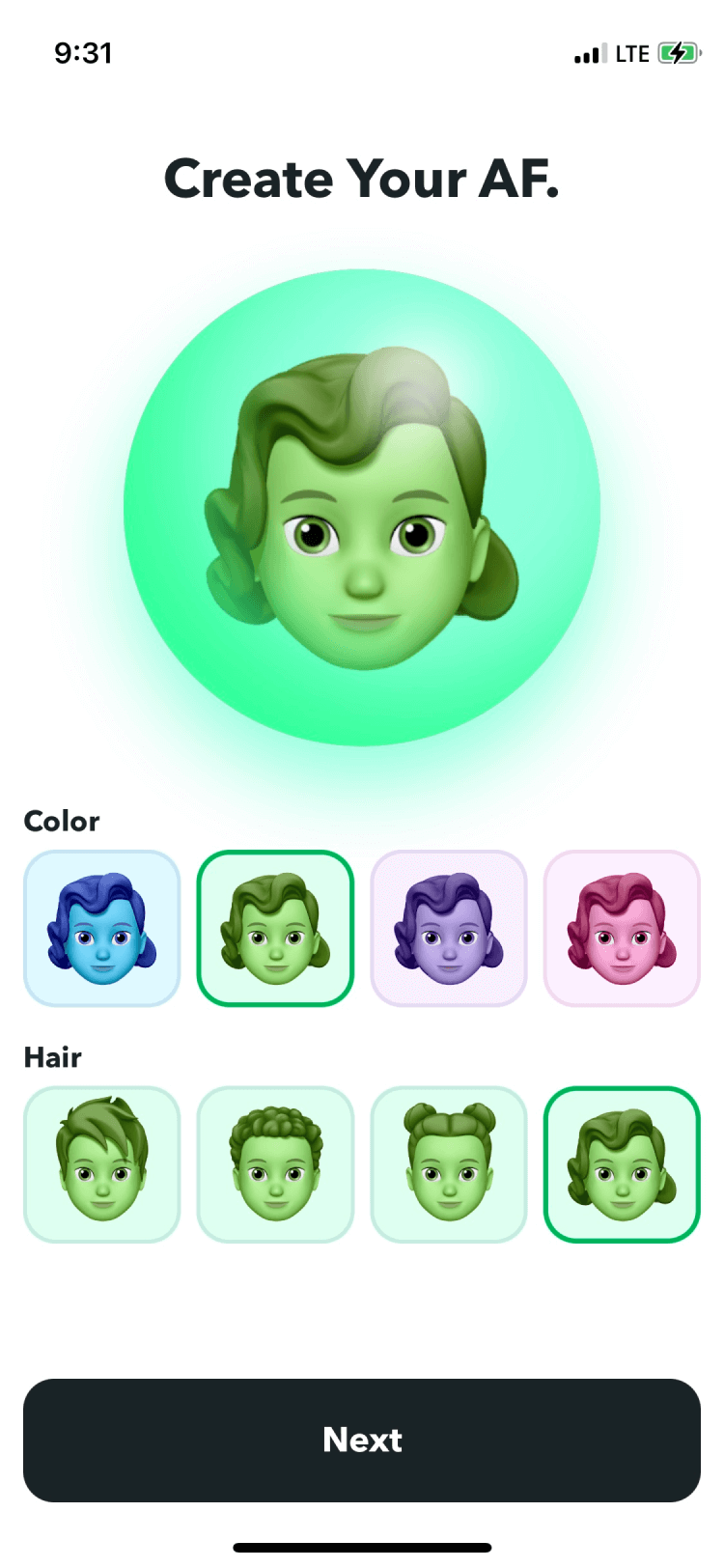
The first thing you do in AF is create and name your own assistant, which is embodied in an avatar. I think this would give people a greater affinity for their assistant, and therefore a better UX.
I just used static Memoji for the concept, but the idea is that they'd be custom and animated. Having the avatar would open up “video chatting” with your assistant, which I think is a better interface for a lot of chatbot interactions.
(AF stands for “artificial friend”, which is a term from a book I really like, Klara and the Sun.)
Color Themes
The color theme of the app matches whichever color you choose for your AF.
The design nerd reasoning for this is that I wanted to communicate is that your AF isn't just the avatar, it's the entire interface.
The more practical reasoning is that if you choose a color for your AF, you probably like that color and would enjoy seeing it throughout the interface (I would like to test this assumption).
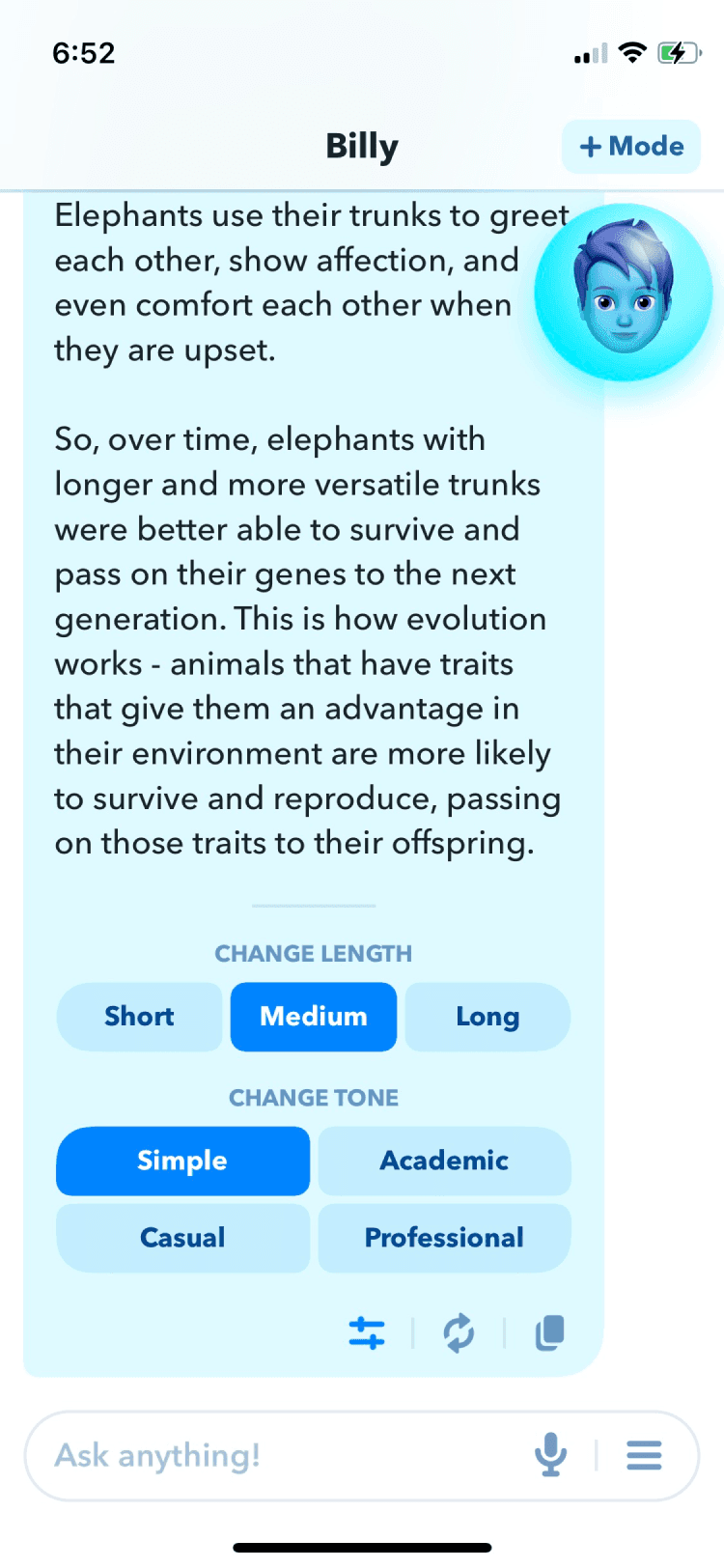
Answer Toolbar
In the main chat, each answer from your assistant has a toolbar at the bottom, with buttons for copying, retrying, or adjusting the answer. The adjustment button opens a panel for changing the length and tone of the answer.
Screens